
You do not need extra hardware to start watching IPTV — your Smart TV can do it on its own. Here is how to set it up on Samsung and LG in a few minutes, plus the fixes for the problems that trip people up.
What you need first
- Your Smart TV connected to the internet (Wi-Fi is fine, wired is better).
- Your login details from your provider’s welcome email — usually a username, a password and a server address.
- To know which app to use — your provider will tell you, and ours are listed in the support guides.
Option 1 — install an app on the TV
- Open your TV’s app store (Samsung Apps or the LG Content Store).
- Search for your IPTV app. Common choices for Smart TVs include Smart IPTV (SIPTV), IPTV Smarters and IBO Player — your provider will confirm the right one.
- Install it and open the app.
- Enter the login or playlist details from your welcome email.
- Wait for the channel list to load — with a large list this can take a moment — then start watching.
Option 2 — use a streaming stick or box
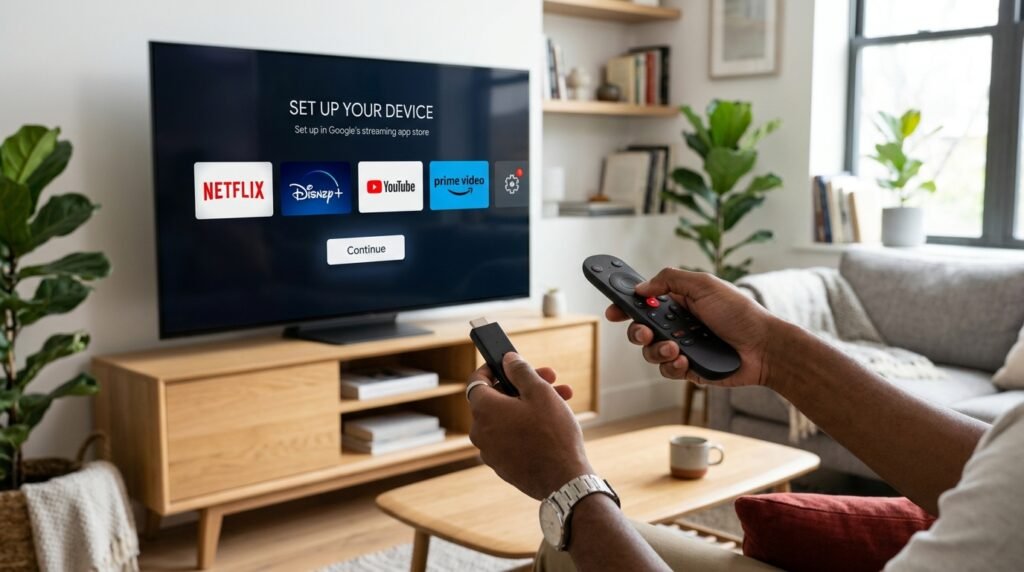
If your Smart TV is older, slower, or you cannot find the app, a Fire TV Stick or Android box is smoother. Plug it into an HDMI port, install the app and log in the same way. This is also the easiest upgrade path when the built-in app feels clunky.
Getting a smooth picture
- Use a wired connection if you can — it beats Wi-Fi for live sport.
- Restart your router if the picture stutters.
- Close other downloads during a big match.
- Lower the quality one step if a channel struggles — HD is plenty on most TVs.
- If one channel lags, try another or ask support to switch you to a different server.
Smart TV vs stick: which is better?
For a modern Samsung or LG, the built-in app is the simplest route and needs no extra hardware. For older sets or if you want the smoothest menus and 4K, a stick or box wins. Either way, the app matters more than the hardware — see our guide to the best IPTV app per device.
Troubleshooting quick list
- App not loading? Check your internet connection and try again.
- Channels missing? Refresh the playlist or re-enter your login.
- Login rejected? Re-enter the details exactly as sent — a stray space is the usual culprit.
- Black screen? See our guide to fixing a black screen and other issues.
- Still stuck? Contact support — most issues are fixed in minutes.
Frequently asked questions
Do I need to buy anything? No — if you have a Smart TV, you can start today with no extra device.
Will it work on my model? If your Samsung or LG is a smart TV with an app store, yes. If not, a Fire Stick solves it for the price of a takeaway.
How long does setup take? Usually under five minutes once you have your login.
Want to try it yourself? Start a free 24-hour test — no card required — or compare the plans from €10 per month.