

If you watch TV in a language that is not your own – or you simply like reading along – subtitles matter. On IPTV they work differently per app, and the number one complaint we hear is not that subtitles are missing: it is that people cannot find where to turn them on, or the wrong language shows up, or they run out of sync. Here is how it works in every app we support, and why sometimes nothing you try will change anything on screen.
The rule behind all of it: subtitles must exist in the stream. An app can only show what the channel or film carries. An empty subtitle list means there is nothing to show – changing settings will not create one.
Three kinds of subtitles you will meet
- Track subs (most common): text tracks delivered inside the stream, often in several languages. These can be turned on, off and switched in the app.
- Teletext subs: older channels embed subtitles in the teletext pages. A few apps can decode them (Sparkle TV is one), many cannot.
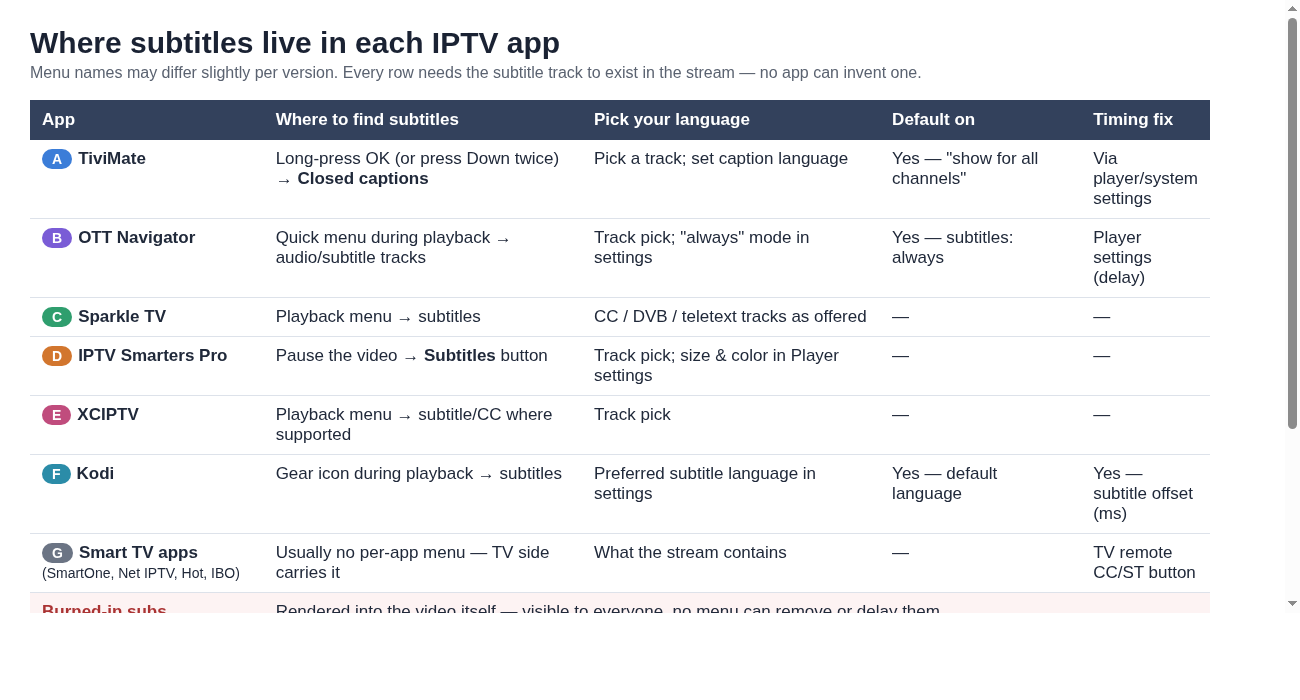
- Burned-in subs: the text is drawn into the picture itself before it is broadcast. Everyone sees the same subtitles, always, in the same language. No menu can remove them, delay them or translate them. The tell-tale sign: subtitles stay on screen even though the app’s track list is empty.
Where the subtitle menu lives in each app
TiviMate
During playback, long-press OK (or press Down twice) to open the playback menu and choose Closed captions. Pick a track and you are done. To have subtitles on automatically for every channel, set Show Closed Captions for all channels and pick your preferred language. Text size and style follow your device’s system caption settings.
OTT Navigator
Open the quick menu during playback and switch to the audio/subtitle tracks. In settings you can put subtitles on always, which auto-selects the first track even when it does not match the app language – convenient when you want one fixed subtitle language everywhere. Sync off? There is a delay setting in the player options. If the stream shows no tracks on hardware codecs, switch that channel to software codecs; subtitle tracks often appear then.
Sparkle TV
Sparkle decodes CC, DVB subtitles and teletext, which makes it a good pick for older European channels. During playback: menu – subtitles – track. A preferred language can be fixed in the settings.
IPTV Smarters Pro
Pause the video. A Subtitles button appears at the bottom; pick a track from there. Font size and colour live under Settings – Player. If the button does nothing on one movie, that title has no subtitle track – or playback is using an external player, in which case load an .srt inside VLC and use that instead.
XCIPTV
Same pattern: playback menu – subtitles/CC where the stream offers it – pick a track. For VOD without subs, an external player that accepts .srt files is the workaround.
Kodi
Kodi gives the most control. Set a preferred subtitle language under Settings – Player – Subtitles. During playback the gear icon opens subtitles: pick a track or search the built-in subtitle downloader. If subs run early or late, adjust the subtitle offset there, in milliseconds, while you watch.
Smart TV apps: SmartOne, Net IPTV, Hot IPTV, IBO Player
These Tizen (Samsung) and webOS (LG) apps mostly leave subtitles to the TV. Turn on the TV’s caption setting: LG – Settings – General – Accessibility – Closed Caption; Samsung – Settings – General – Accessibility – Caption. The CC/ST button on the remote often works during playback too. If that does nothing, the app on that platform cannot show the track – no setting changes that.
GSE, Implayer and STB Emu
GSE keeps subtitle options in its player settings. Implayer follows the Android standard: playback menu – pick a track. STB Emu imitates a MAG box, so subtitles behave like they do on those boxes: usually via the TV caption setting, with track subs mainly on VOD.
When your language is not in the list
The provider decides which subtitle languages a stream carries. If a film only has English tracks and you want Dutch, no menu adds it. Try another channel carrying the same film – different sources often include different languages – or check whether the guide lists the title elsewhere. For VOD, an external player with your own .srt file in your language is the reliable route.
When subtitles run early or late
Kodi: subtitle offset, adjustable live in milliseconds. OTT Navigator: player delay setting. TiviMate: through the system caption settings. In most other apps there is no timing control – what the stream sends is what you see.

Still nothing on screen?
Walk the ladder above once, top to bottom. If the track list stays empty on every channel, you are either watching a burned-in stream or a channel without subtitle support. Ask via our contact page if you want us to look at a specific channel. And if you are testing providers, start the free 24-hour test and check subtitle support on your own channels first.
More reading
Follow the news from your country, live
Missing the evening news, the morning shows or the big match back home? With an IPTV subscription the channels from your country come straight to your screen, wherever you live.
See the full worldwide line-up on our Channels & Coverage page, then start a free 24-hour test and check your own channels in minutes.